How to Use MAKR AI to Build a Setup Across 6 Brands
Planning a setup usually means bouncing between six different websites, comparing specs in spreadsheets, and hoping everything works together. MAKR changes that. It knows every product across Corsair, Elgato, Fanatec, Origin, SCUF, and DROP — and can mix them into a single cohesive build right in front of you.
What you need
- A web browser (desktop or mobile)
- About 5 minutes
Step 1: Start a scene and open the chat
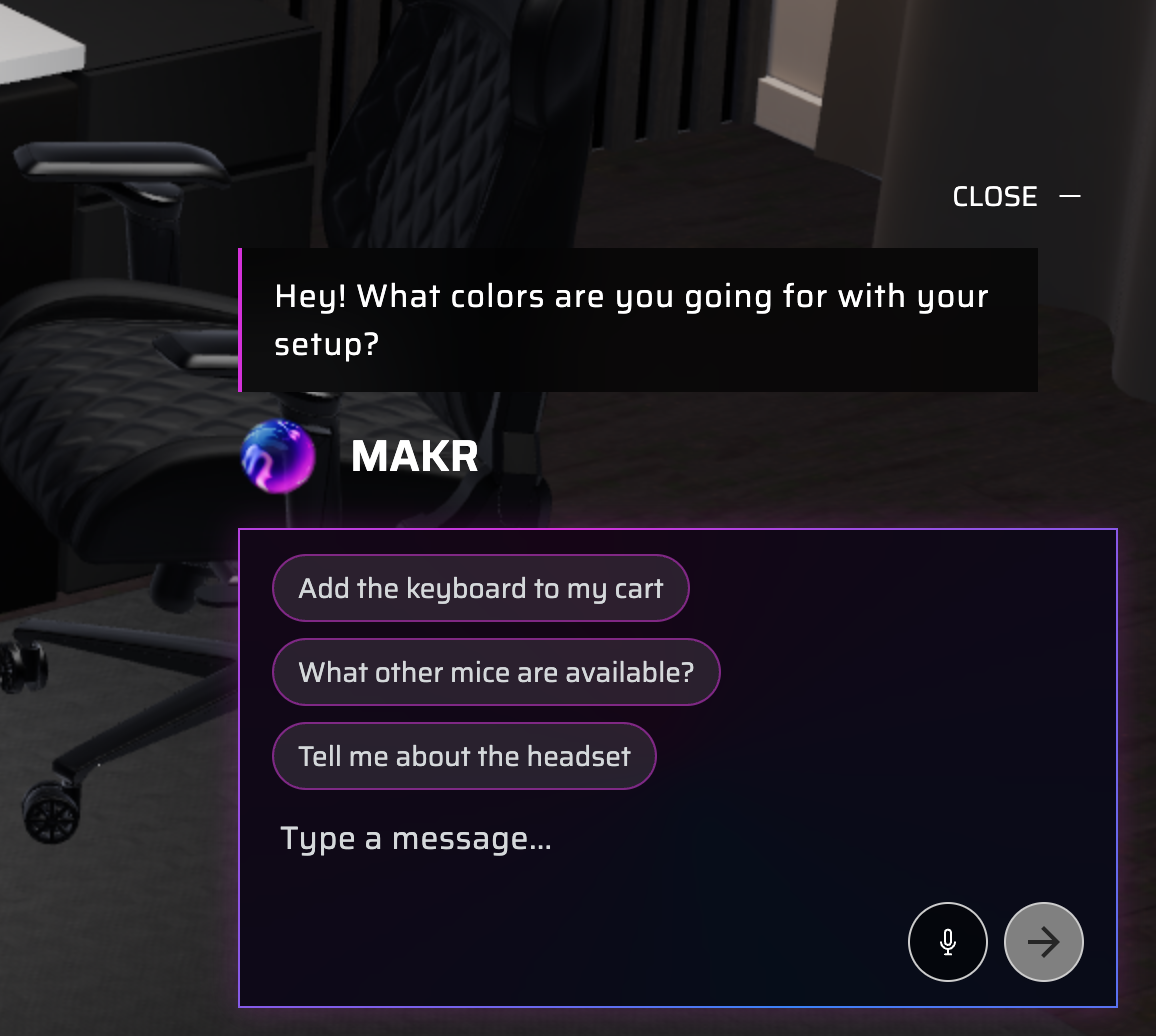
Load any scene (or start from scratch) and look for the chat panel on the right side. This is MAKR — your AI design assistant. You can type or use voice mode.
→ Open Atelier and start chatting with MAKR
Step 2: Tell MAKR what you're going for
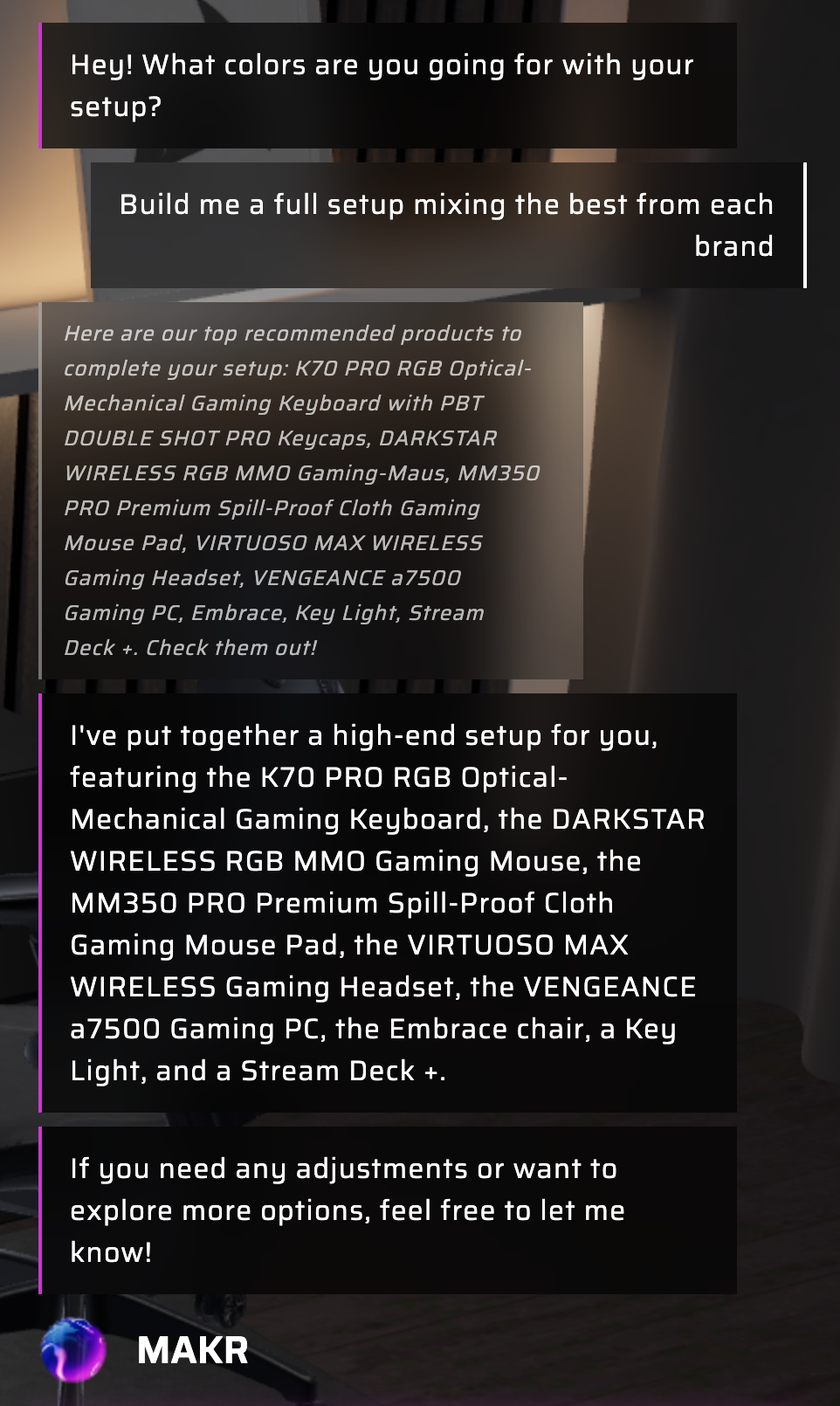
Describe your ideal setup in plain language. Be as specific or vague as you like — MAKR adapts. Try something like:
- "I want a streaming setup with Elgato lighting and a Corsair keyboard"
- "Build me a full setup mixing the best from each brand"
- "I need a Fanatec wheel with an Elgato camera for streaming my races"
Step 3: Watch MAKR build it in 3D
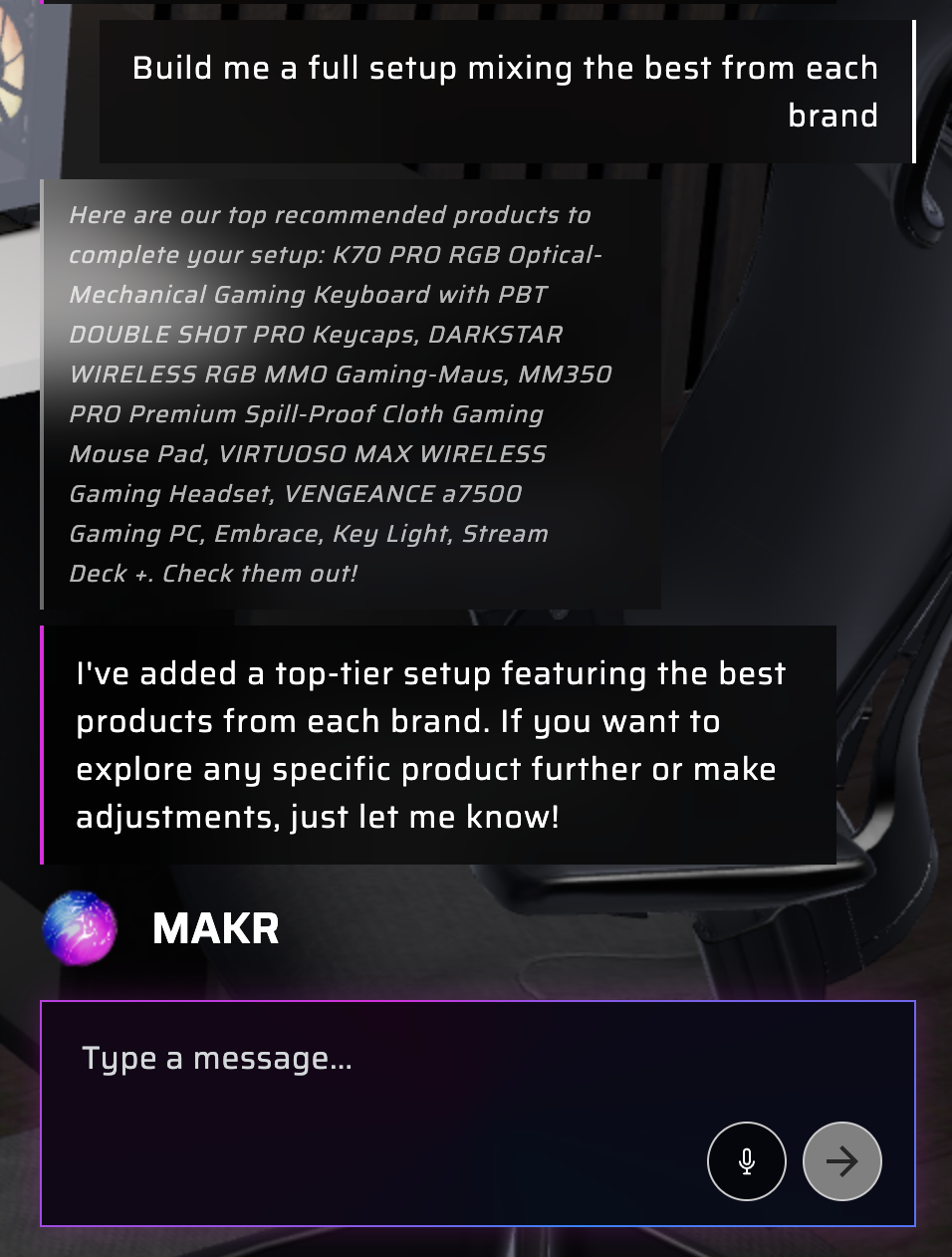
MAKR will select products from across all six brands and add them to your 3D scene. You'll see each product appear in real time. MAKR explains its choices — why it picked one mic over another, which brands excel at what.
Step 4: Swap anything you don't love
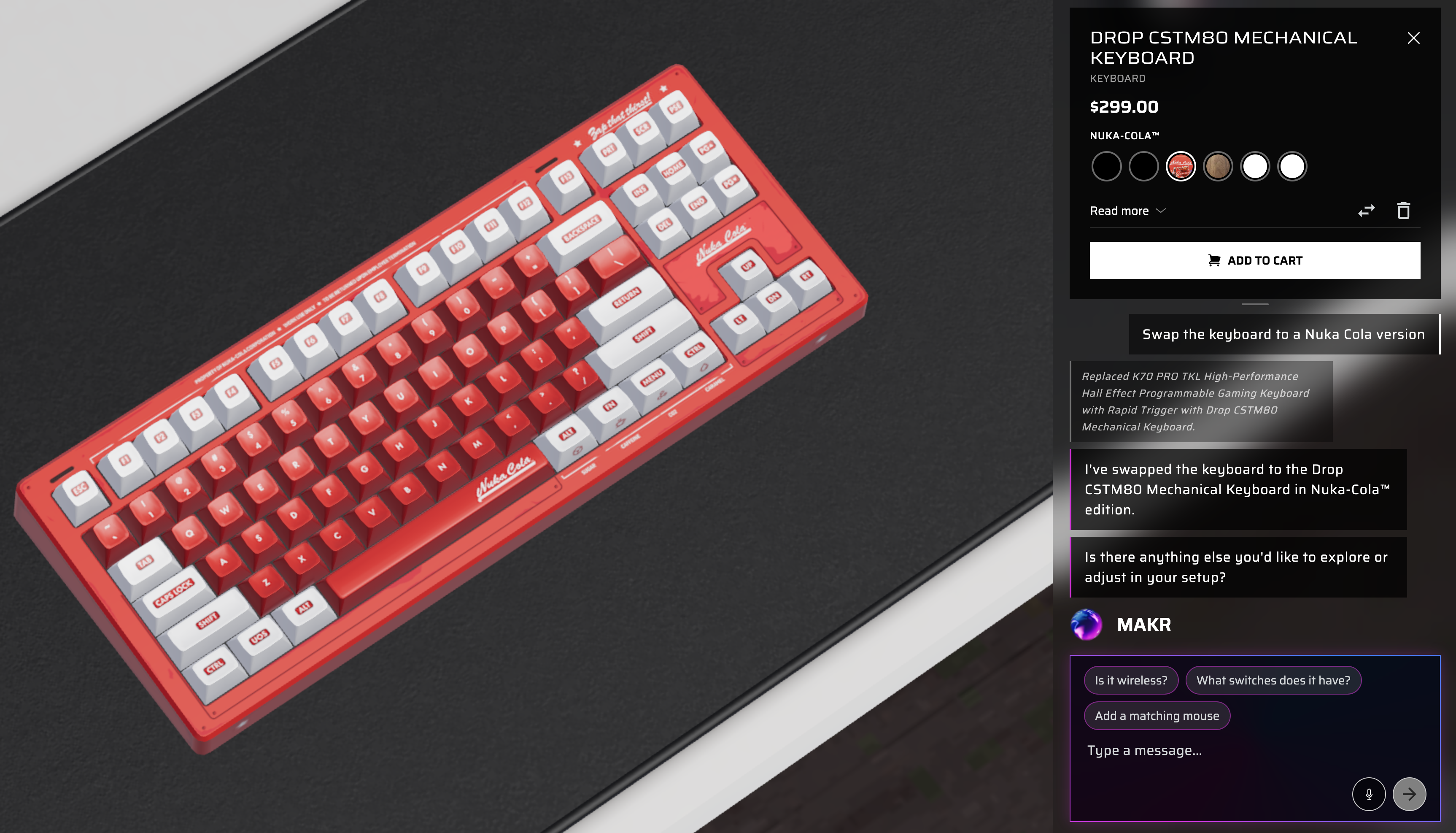
Not sold on a particular pick? Tell MAKR — "swap the keyboard for something quieter" or "I'd prefer a DROP keyboard instead." You can also click any product and browse alternatives manually.
Step 5: Check compatibility and add to cart
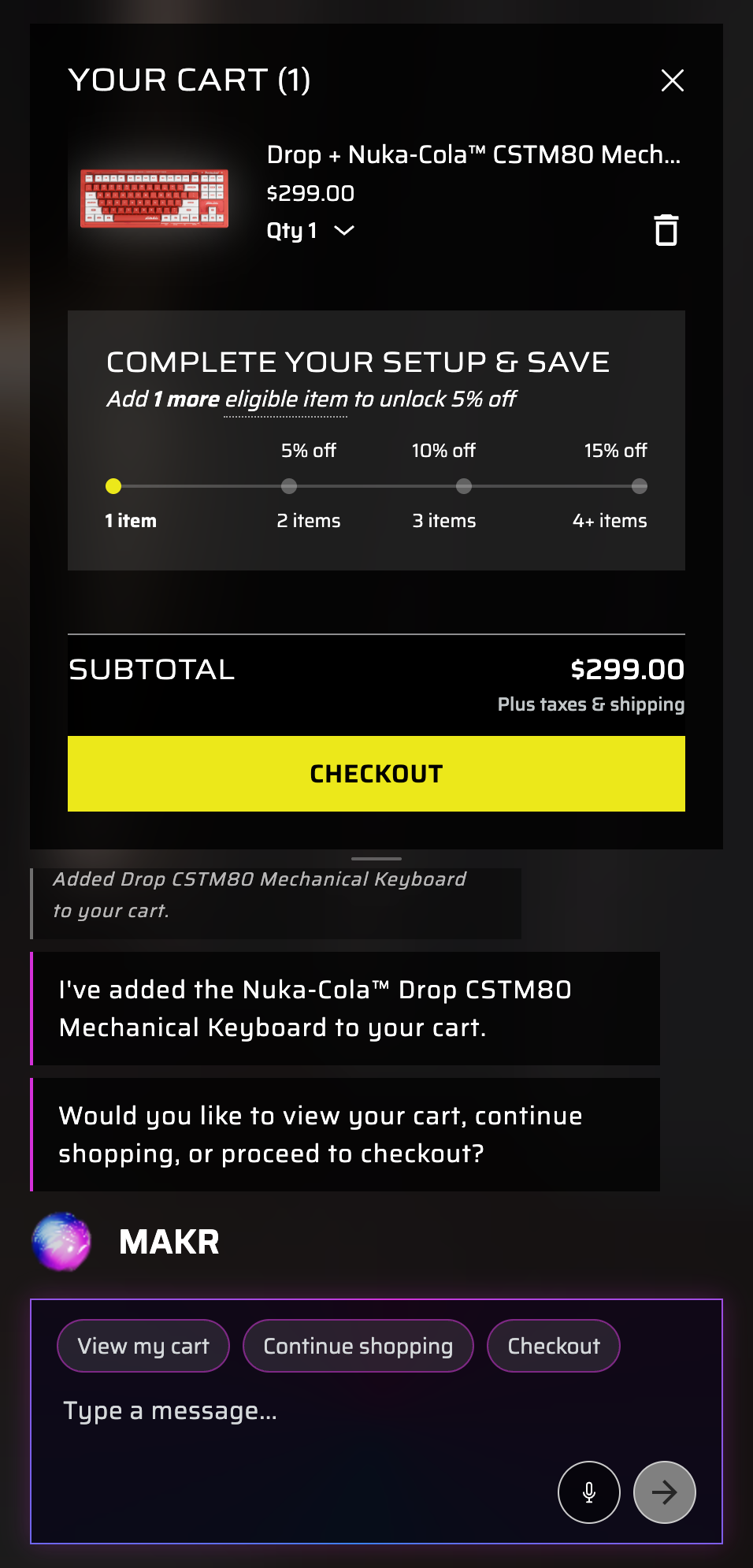
MAKR automatically handles product dependencies (like adding a mic arm when you pick a mic). When you're ready, ask MAKR to add everything to cart — or save the configuration for later.
→ Try it — ask MAKR to "build me a multi-brand setup"
Pro tips
- Ask "what brands do you have for monitors?" to explore what's available in a specific category
- MAKR color-matches across brands — ask for "an all-white setup" and it'll pick white variants from each brand
- Use voice mode for a faster, hands-free experience — just describe what you want out loud
Ready to mix and match?
Let MAKR combine the best of Corsair, Elgato, Fanatec, Origin, SCUF, and DROP into your ideal setup — all in one place.