How to Plan Your Sim Racing Cockpit in 3D
Buying a sim racing cockpit is a serious commitment — wheels, pedals, shifters, rigs, and screens all need to work together. Corsair Atelier lets you visualize the complete setup in 3D before you spend anything, so you know exactly what you're getting.
What you need
- A web browser (desktop or mobile)
- About 5 minutes
Step 1: Load the sim racing scene
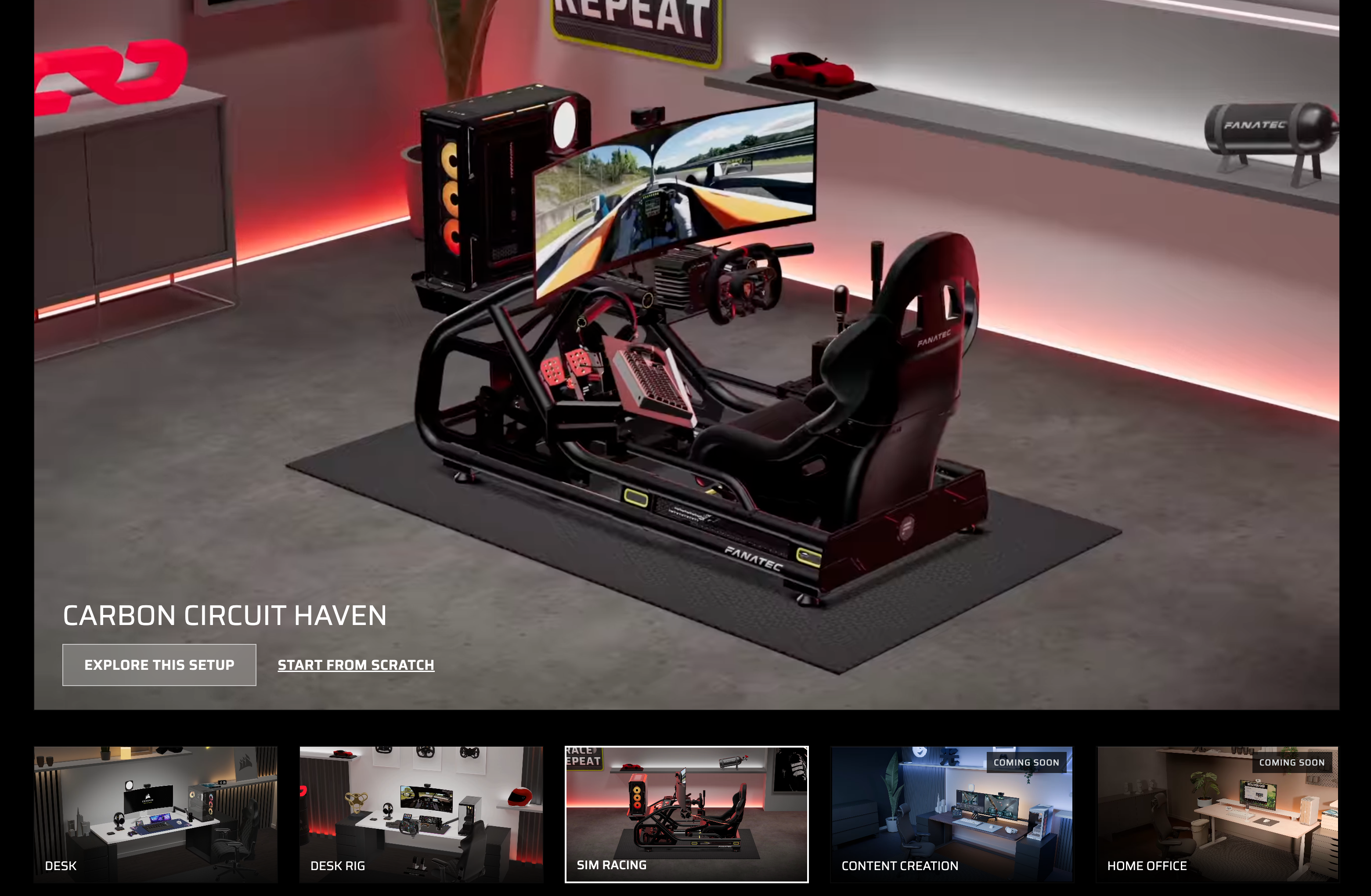
On the Atelier homepage, pick a sim racing predefined scene — or start from scratch and choose "Sim Racing" as your scene type. You'll get a dedicated cockpit environment to build in.
→ Start with a sim racing scene
Step 2: Pick your wheel base and wheel
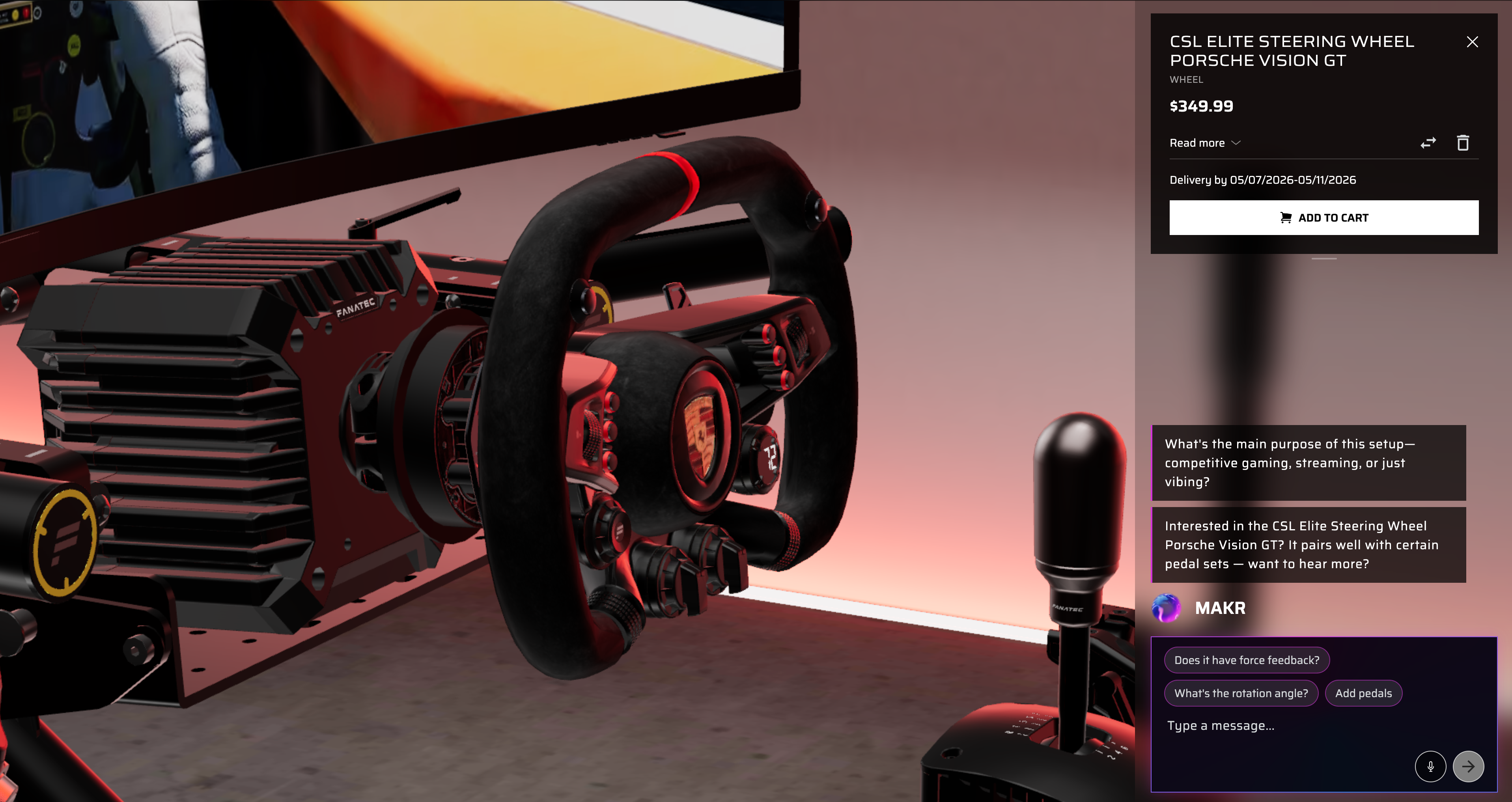
The wheel is the heart of your rig. Browse Fanatec wheel bases and compatible steering wheels in the product browser. When you select a wheel base, compatible wheels are highlighted automatically.
Step 3: Add pedals, shifter, and handbrake
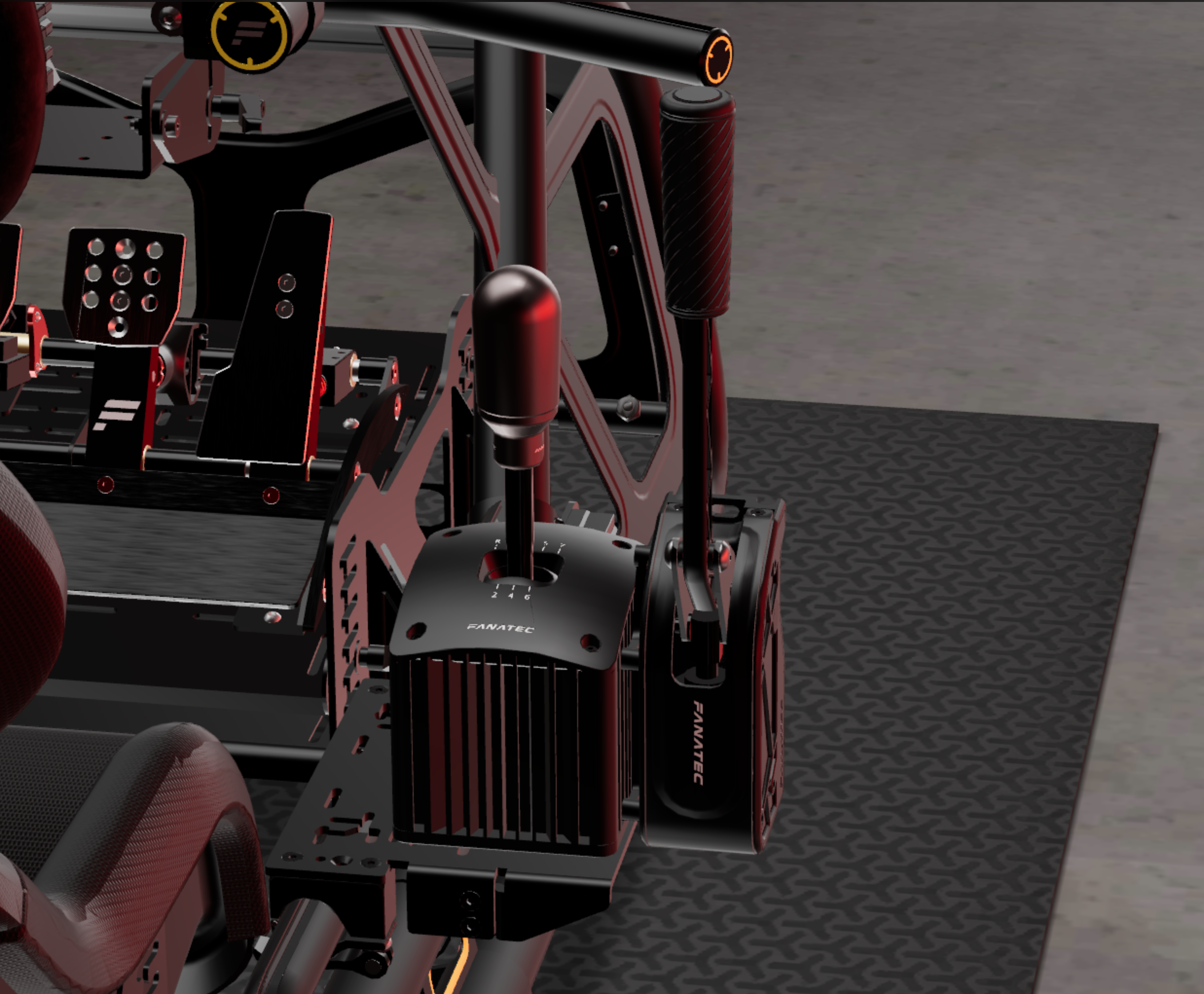
Build out your controls. MAKR can suggest what pairs well with your wheel choice, or browse manually. Products that don't fit your current rig are automatically filtered out.
Step 4: Choose your rig frame
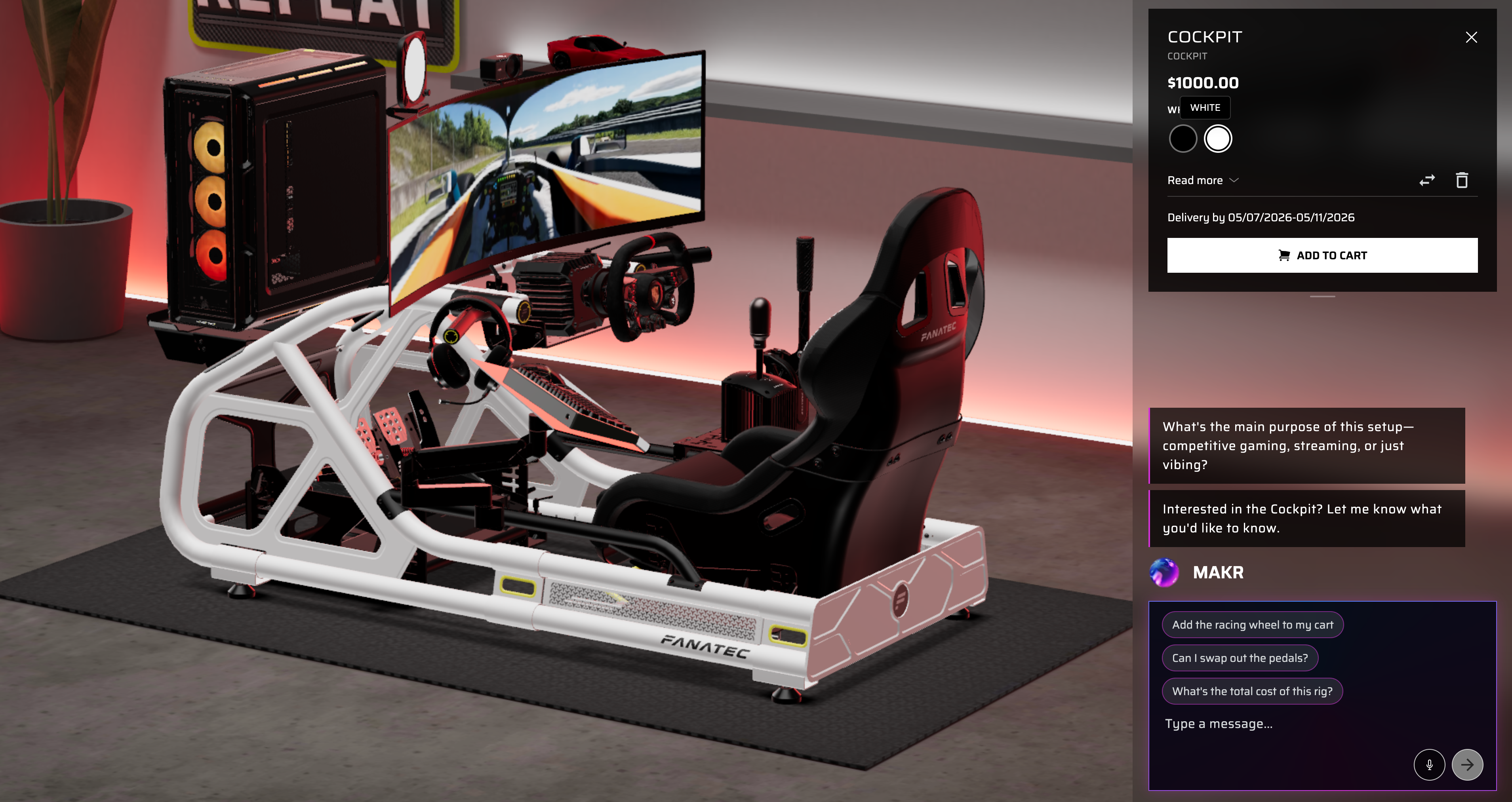
Select from cockpit rigs that support your chosen components. The 3D view shows exactly how everything mounts together — no guessing about compatibility or spacing.
Step 5: Finalize and purchase
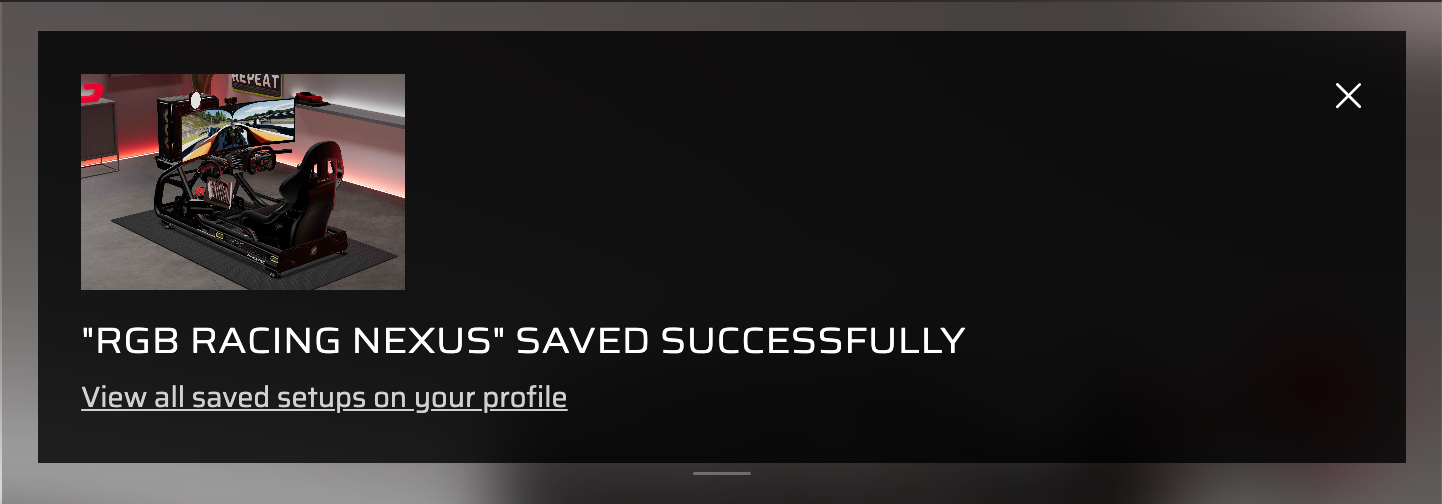
Rotate the full cockpit, check everything looks right. Ask MAKR about any last questions ("will this fit in my room?" or "what screen size works best here?"). Then add to cart or save for later.
→ Try it — ask MAKR to "build me a sim racing rig"
Pro tips
- Ask MAKR "build me a sim racing setup for [budget]" to get a complete rig recommendation instantly
- Switch between desk and sim racing scenes to plan a combined setup if your rig shares a room with your desk
- MAKR knows Fanatec compatibility rules — it won't let you pair incompatible wheels and bases
Ready to build your cockpit?
Visualize your full Fanatec sim racing rig in 3D — see exactly how every component fits before you commit.