How to Design Your Setup Entirely by Voice
Most configurators make you click through endless menus. MAKR lets you just talk. Describe what you want in plain English, and your setup builds itself in real-time 3D. Then keep the conversation going — swap products, ask questions, compare specs, and check out, all without touching a mouse.
What you need
- A web browser (desktop or mobile)
- A microphone (built-in works fine)
- About 2 minutes
Step 1: Open voice mode
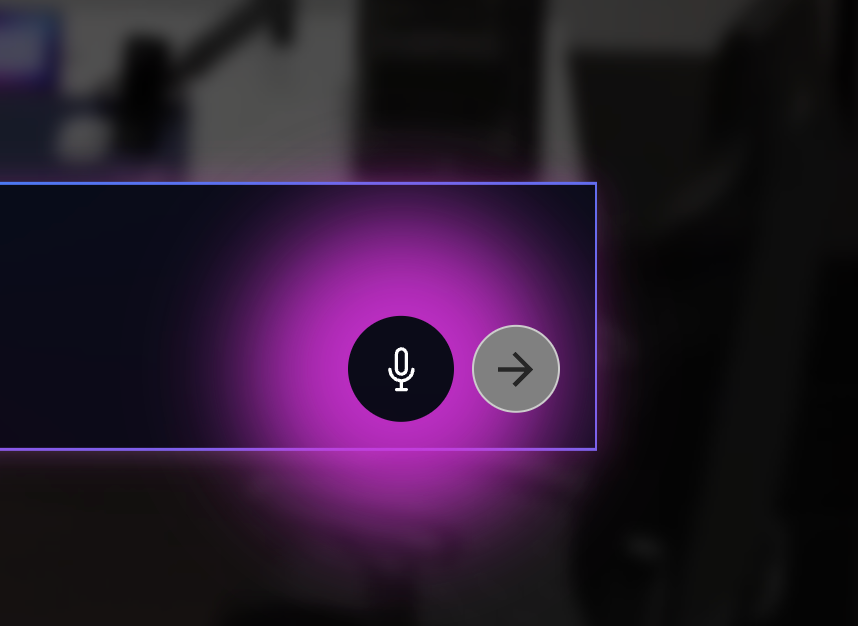
Open any scene in Corsair Atelier and look for the microphone icon in the chat panel on the right. Click it to activate voice mode — MAKR will greet you and start listening.
→ Open Atelier and try voice mode
Step 2: Describe your ideal setup
Speak naturally — as if you're telling a friend what you want. Try something like:
- "I want a streaming setup with a white theme"
- "Build me a sim racing rig with a direct drive wheel"
- "I need a full desk setup for gaming and work"
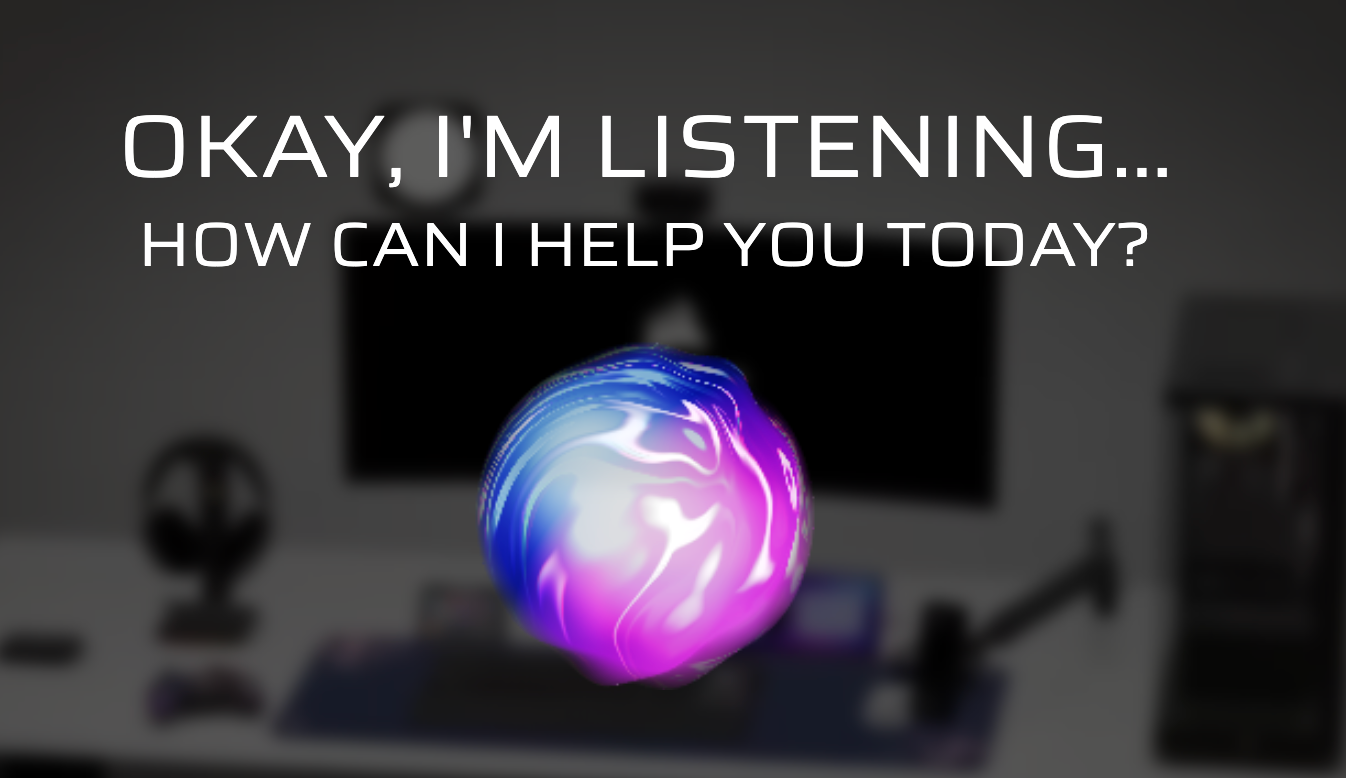
Watch MAKR add products to the 3D scene in real time as it processes your request.
Step 3: Iterate naturally
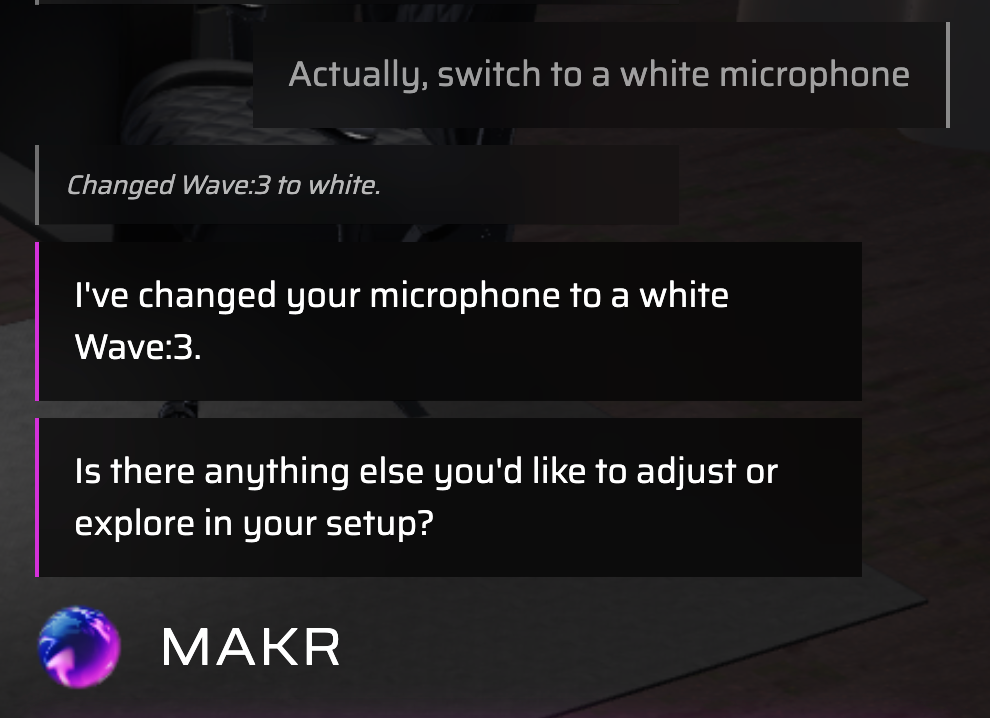
Keep talking to refine your setup. MAKR remembers everything you've said and adapts:
- "Actually swap the mic for something smaller"
- "What else would you recommend for streaming?"
- "I don't like that keyboard — show me alternatives"
- "Make it all black instead"
MAKR asks its own questions too — "What color scheme do you prefer?" or "Do you need a PC included?" — so the conversation flows both ways.
Step 4: Ask MAKR questions
You're not limited to commands. Ask anything about the products in your scene:
- "What's the total price so far?"
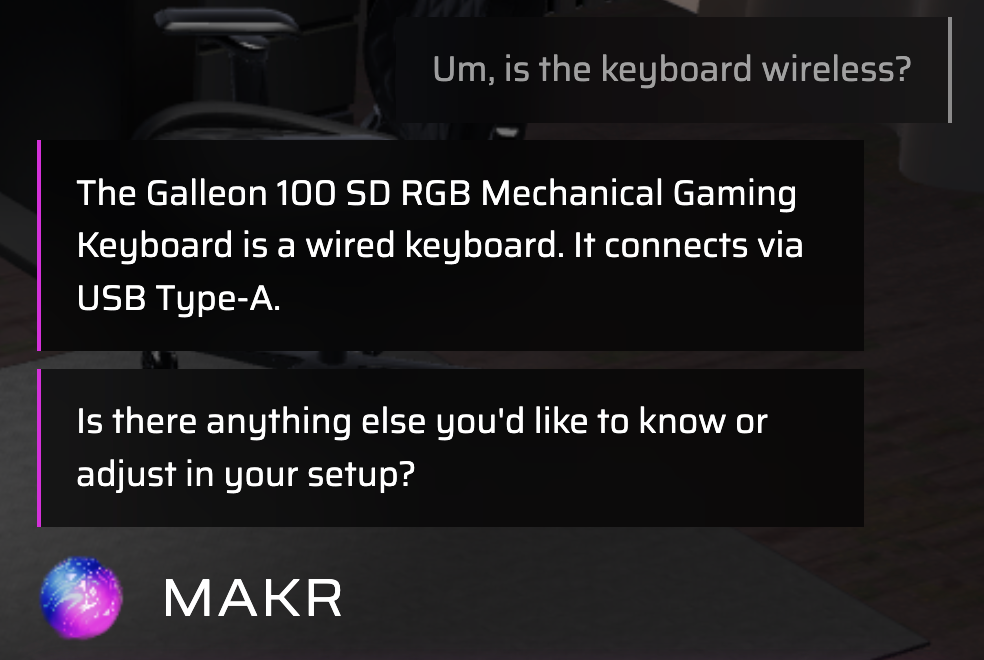
- "Is this keyboard wireless?"
- "What's the difference between these two mice?"
- "Which headset has the best mic quality?"
MAKR fetches live pricing and specs without you clicking anything.
Step 5: Finalize by voice
When you're happy with your setup, just say:
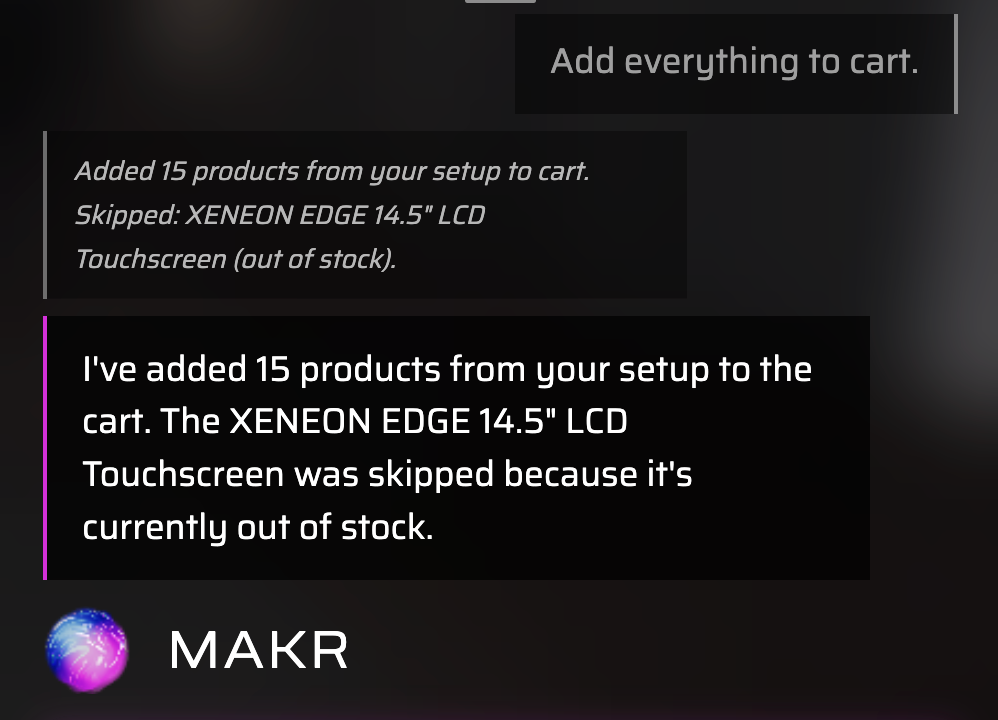
- "Add everything to cart"
- "Save this configuration"
- "Share this setup"
MAKR executes the action and confirms. Your entire journey — from empty scene to checkout — happened through conversation.
Pro tips
- You can switch between voice and text mid-conversation — your context carries over seamlessly
- Say "start over" or "clear everything" to wipe the scene and begin fresh
- Voice works on mobile too — design your setup while walking around
- If MAKR mishears you, just correct it naturally: "No, I said the white one"
Ready to try hands-free setup design?
Just talk. Describe your ideal setup and watch it come together in real-time 3D.